QR Codes
Generate printable QR code batches, attach them to hive boxes, and scan them to open the correct hive instantly.
Why use QR codes?
When you're in the apiary wearing gloves, finding the right hive in a phone app is slow. A QR code label on each hive box lets you scan-and-open in under two seconds — the correct hive detail screen opens instantly, ready for a new inspection.
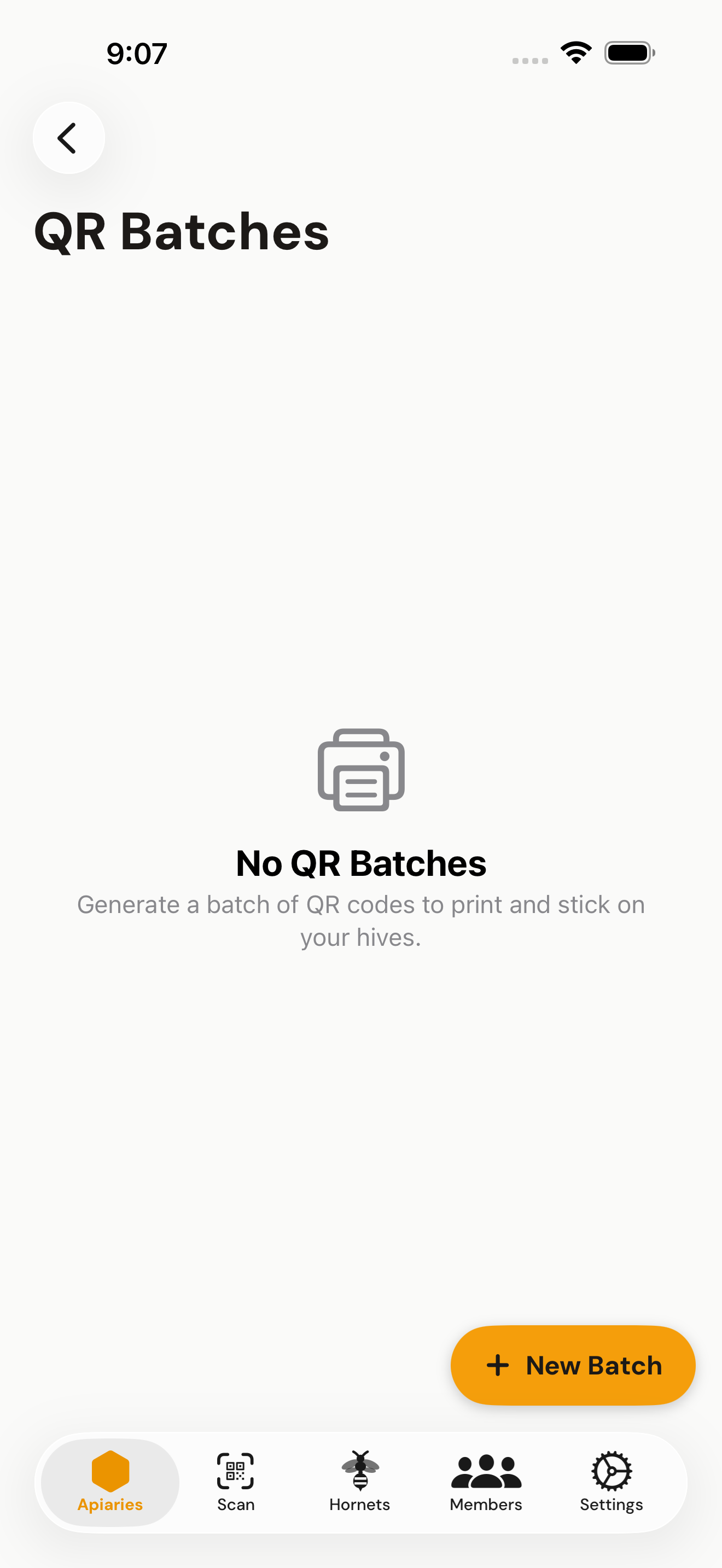

Step 1 — Generate a batch (web)
- 1Go to QR Batches
In the web dashboard, open Settings → QR Batches (or navigate directly to
/dashboard/qr-batches). - 2Tap + New Batch
Enter the number of codes to generate (1–50). One code per physical hive box.
- 3Download the PDF
Open the new batch and click Download PDF. The PDF contains one QR code per page, sized for standard label sheets.
- 4Print and attach
Print on weatherproof label paper if possible. Stick one label on each hive box — the lid is a good spot.

Step 2 — Link a code to a hive (mobile)
- 1Open the hive detail screen
Navigate to the hive you want to link (via the apiary list).
- 2Tap Assign QR / Initialize Hive
The camera opens in scanning mode.
- 3Scan the printed label
Point the camera at the QR code on the label. The token is read automatically — no button press needed.
- 4Confirm the link
A confirmation screen shows the hive name. Tap Confirm to finish. The QR token is now permanently linked to that hive.

Step 3 — Scan to open during inspections
- 1Tap the scan icon
The QR scanner is available from the bottom navigation bar on both iOS and Android.
- 2Point at the hive label
The app reads the code and immediately opens the hive detail screen.
- 3Tap New Inspection
You're now on the correct hive, ready to log your visit.
Tips
Use weatherproof label stock (polypropylene or laminated paper). Standard paper labels deteriorate quickly outdoors, especially in rain and direct sun.
Each QR token can only be linked to one hive. If you need to reuse a label (e.g. the hive was split), generate a new batch — old tokens remain locked to their original hive.
Delete a QR batch
A batch you no longer need can be deleted from the QR batches list: the trash icon on the website, Delete on the batch in the apps. This only works while no code of the batch is attached to a hive. Scanning the sticker is how a hive is found again, so the batch stays until those hives are gone; the delete button is not offered for it.