Hives
Add hives to an apiary, choose a hive type (Langstroth, Dadant, Top Bar, Warré), and link a QR code for fast field access.
What is a hive record?
A hive record represents one physical colony box. It has a name, a type, and an optional QR code label. All inspection history is attached to the hive record, so you can view the full health trend of that colony over time.

Hive types
Choosing the correct type does not affect functionality — it is a label to help you tell your hives apart in the list.
Creating a hive
- 1Open an apiary
Tap the apiary name to open its detail view.
- 2Tap the + (New Hive) button
A form appears asking for a name and hive type.
- 3Choose a name
Use whatever naming scheme makes sense to you: "Hive 1", "Blue box", "South meadow A".
- 4Select a hive type
Pick from the list above. You can change this later from the hive detail screen.
- 5Assign a QR code (optional)
After saving, open the hive and tap Assign QR to link a printed QR token. See QR Codes for the full workflow.

Editing a hive
Name, hive type, acquisition date and notes can be changed at any time — in the browser and, since the latest release, in both apps.
- Web — open the hive and press Edit.
- iPhone and Android — open the hive and tap the pencil in the title bar.
The QR code stays with the hive record, so renaming a colony does not invalidate the sticker on the box.
Viewing a hive
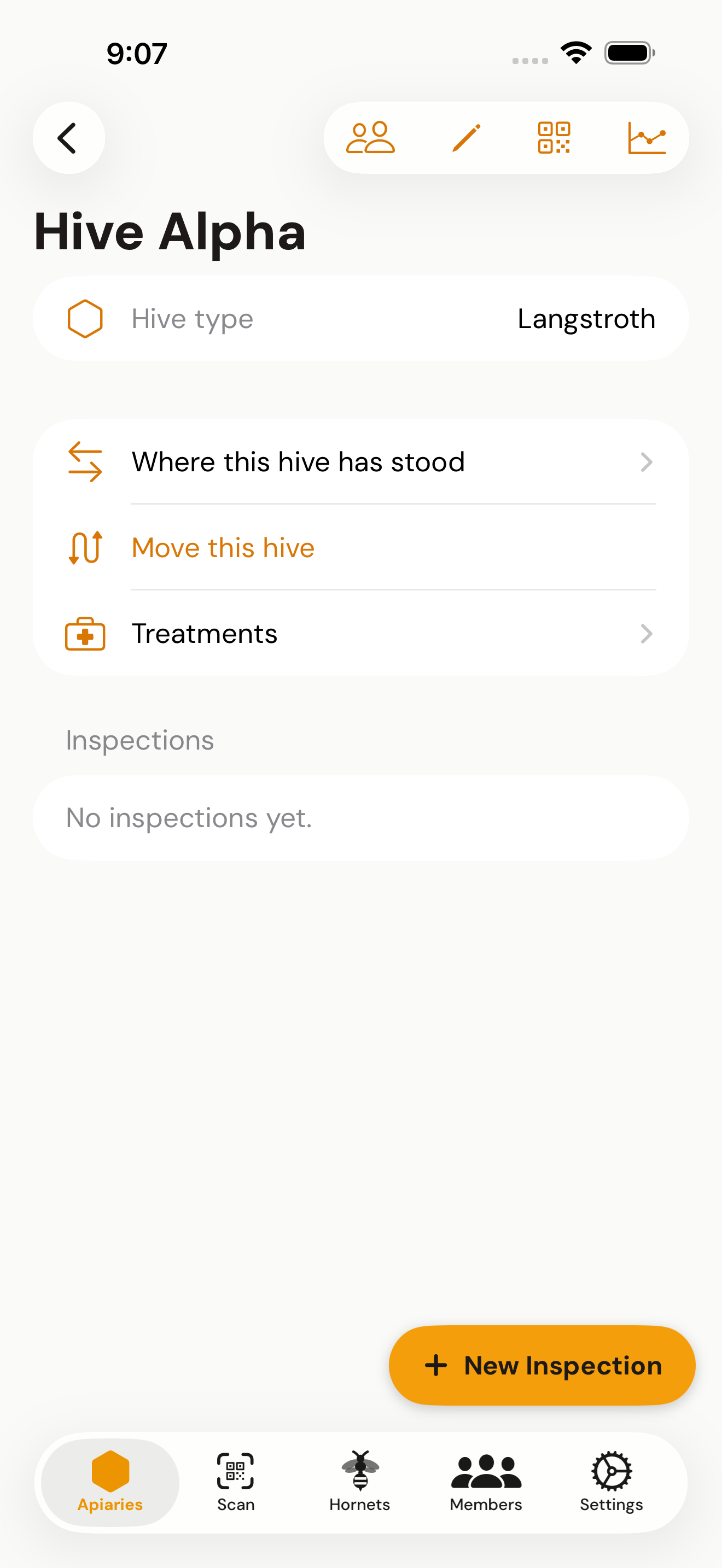
The hive detail screen shows:
- Hive type and the date it was added
- Date of the last inspection
- Full inspection history, newest first
- A button to start a new inspection
- On web: tabs for Inspections, Stats, and Custom Fields

Tips
Give each hive a short, unique name. When you have many hives, names like "A1" or "Top garden" are easier to read in the list than "Hive 1", "Hive 2", "Hive 3".
Deleting a hive permanently removes all inspection history for that colony. Export your data before deleting if you want to keep records.
In the apps: add a hive by hand
On the apiary page of the iPhone and Android apps tap the amber New Hive button at the bottom right, enter a name, the hive type and, if you like, the day you got it and a note. No printed sticker is needed; the hive gets a QR code of its own that you can print later. A printed sticker still works too: scan it and the app asks for the same details.